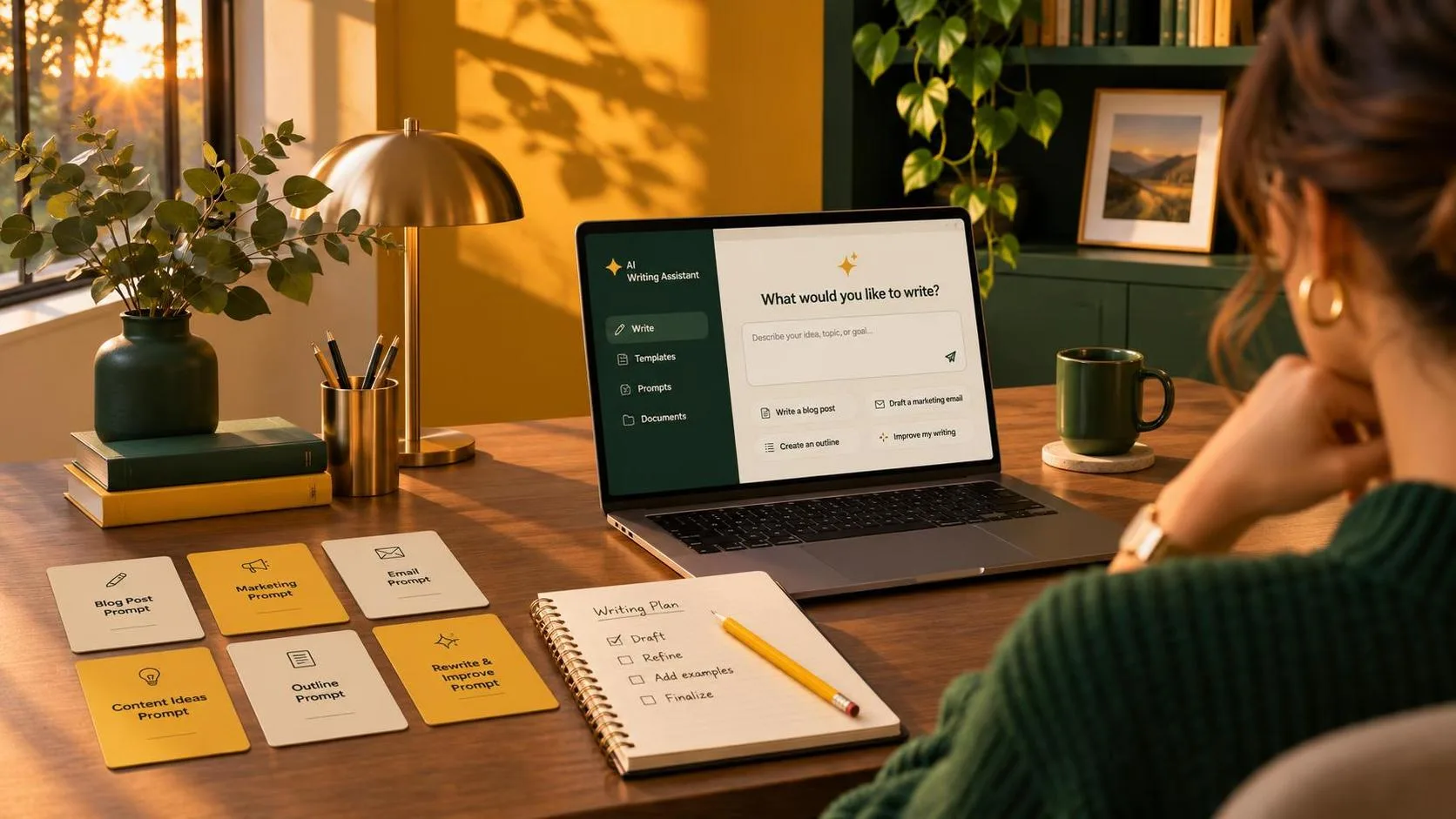
You have a vendor follow-up to send, a meeting starting in ten minutes, and a blank email window. If your first thought is “ai help me write,” the useful answer is yes: an AI assistant can turn your notes into a workable draft. Give it the facts, the audience, and the action you need. Then check every date, promise, and attachment before you hit send.
For a general-purpose starting point, try ChatGPT if you want to work through a draft conversationally. Google Gemini is worth considering if your work is centered on Google tools, while Microsoft Copilot may be a convenient option for a workplace built around Microsoft 365. Features, access, and pricing depend on the account and plan, so check what your employer actually provides before signing up.
Start with the task, not the tool
Here was the actual task to picture: a shipment is late, and you need to ask a vendor for an updated delivery date without sounding angry. You already know the order number, the expected date, and who needs the update. The hard part is turning those details into a short, clear request.
Before opening an AI tool, write down the facts you can verify. For this example, use a fictional order number and date while you practice. Then tell the assistant what the recipient needs to do and when you need a response. You do not need a long prompt or a special formula.
A prompt might read: “Draft a polite email to a vendor about order 1042, expected Tuesday. Ask for the revised delivery date and a reply by Thursday afternoon. Keep it under 100 words. Do not invent a reason for the delay.”
The result should be a starting point, not evidence that the order exists or that the dates are right. If you have to rewrite most of it, the shortcut may not be worth taking for that particular message.

How to ask “ai help me write” and get a usable result
A good request gives the assistant four things: the job, the reader, the facts, and the desired form. For example, “Turn these notes into a short update for my manager” identifies both the job and the audience. Add the notes, specify a length, and say whether you want a direct, friendly, or formal tone.
Constraints are especially useful when you know what tends to go wrong. Try “Use only the information below,” “Flag missing details instead of guessing,” or “Do not promise a completion date.” These instructions reduce some common problems, but they do not guarantee the tool will obey them. You still need to read the draft.
For a meeting summary, separate decisions from suggestions. Paste a clean set of notes and ask for a paragraph covering decisions, followed by action items with an owner and deadline only where those details are explicitly stated. If an owner is missing, have the assistant mark it as unassigned rather than picking someone.
For a report, provide the figures yourself and ask the tool to explain their meaning in plain English. Check the arithmetic independently. A fluent sentence about an incorrect number is still incorrect, and a chart or spreadsheet deserves the same scrutiny as the prose around it.
Pick a tool that fits where you work
A standalone assistant such as ChatGPT can be useful for brainstorming, rewriting, or working through several versions of a message. Copying text in and out is an extra step, though, and your organization may restrict what you can paste into an outside service.
Gemini may make sense for someone already using Google Workspace, and Copilot may be a better place to look if the team works in Microsoft 365. Depending on the subscription and administrator settings, an assistant may be available within a document or email workflow. Do not assume every account includes the same integration or that a personal account has the same privacy terms as a work account.
Also consider whether you need generative AI at all. A built-in spelling checker can fix a typo faster, and an email template may be better for a routine response that barely changes. AI earns its place when the starting material changes enough that a template becomes awkward.
What to check before anything leaves your desk
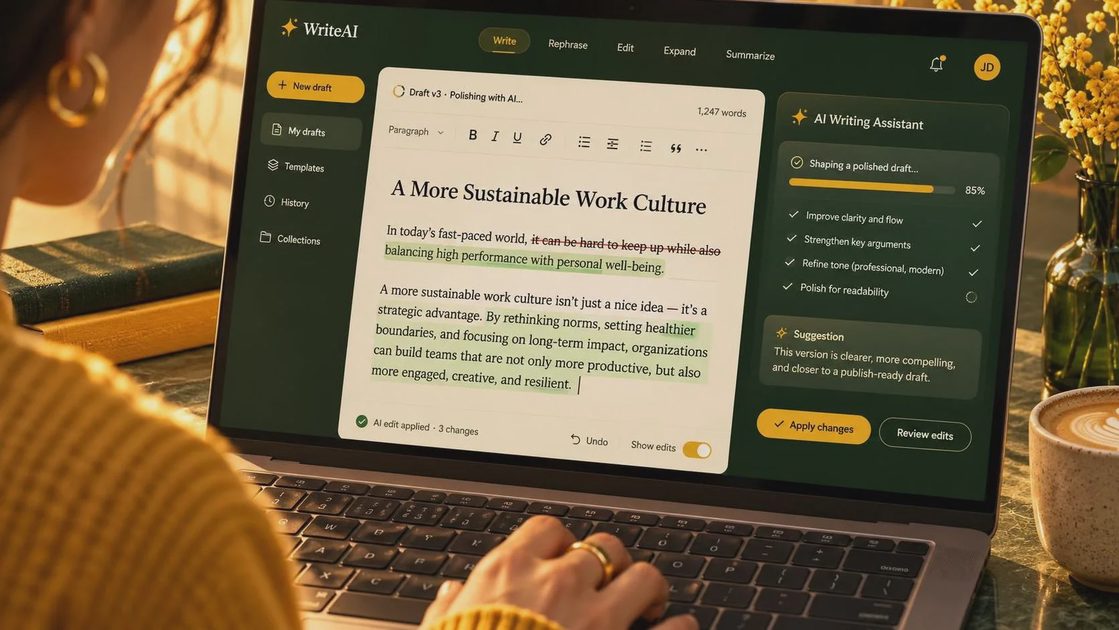
Read the output against your source notes, not just for whether it sounds professional. Look for invented dates, incorrect names, altered numbers, and claims that the recipient already agreed to something. Check that the requested action and deadline match what you intended.
Watch for commitments hiding in friendly language. “We will resolve this by Friday” is not a harmless rewrite if nobody authorized that promise. Similarly, an assistant may add an apology, a legal-sounding assurance, or a reason for a delay that you never supplied. Delete or verify those additions.
Protect information before you paste it. Follow workplace rules for customer data, employee records, contracts, and internal financial details. If you are unsure whether a tool is approved, ask your IT or security contact. For practice, replace real names and order details with fictional ones; removing names alone does not necessarily make sensitive information safe to share.
Measure whether the shortcut actually helps
Run a small comparison with a recurring task. On one occasion, write the message yourself and record the time from opening the blank document to having a send-ready draft. On another comparable task, time the AI workflow from preparing your notes through checking and correcting the output. Include copying, prompting, and any second attempt.
For example, if your own draft takes eight minutes and the assisted version takes six, the potential saving is two minutes for those particular tasks, not a universal result. If checking the generated text takes longer than writing it, skip the assistant next time or give it a narrower job, such as shortening a paragraph you already wrote.
Keep a note of what needed correction: a wrong deadline, an overly stiff tone, or an unsupported promise. Those details tell you whether the tool is reliable enough for a repeatable workflow. Start with low-stakes writing, improve the prompt where it helps, and test it in real life.
For AI tool features, rules and availability, refer to their official sites.



Leave your thoughts here, too.